Listing Smart Contracts
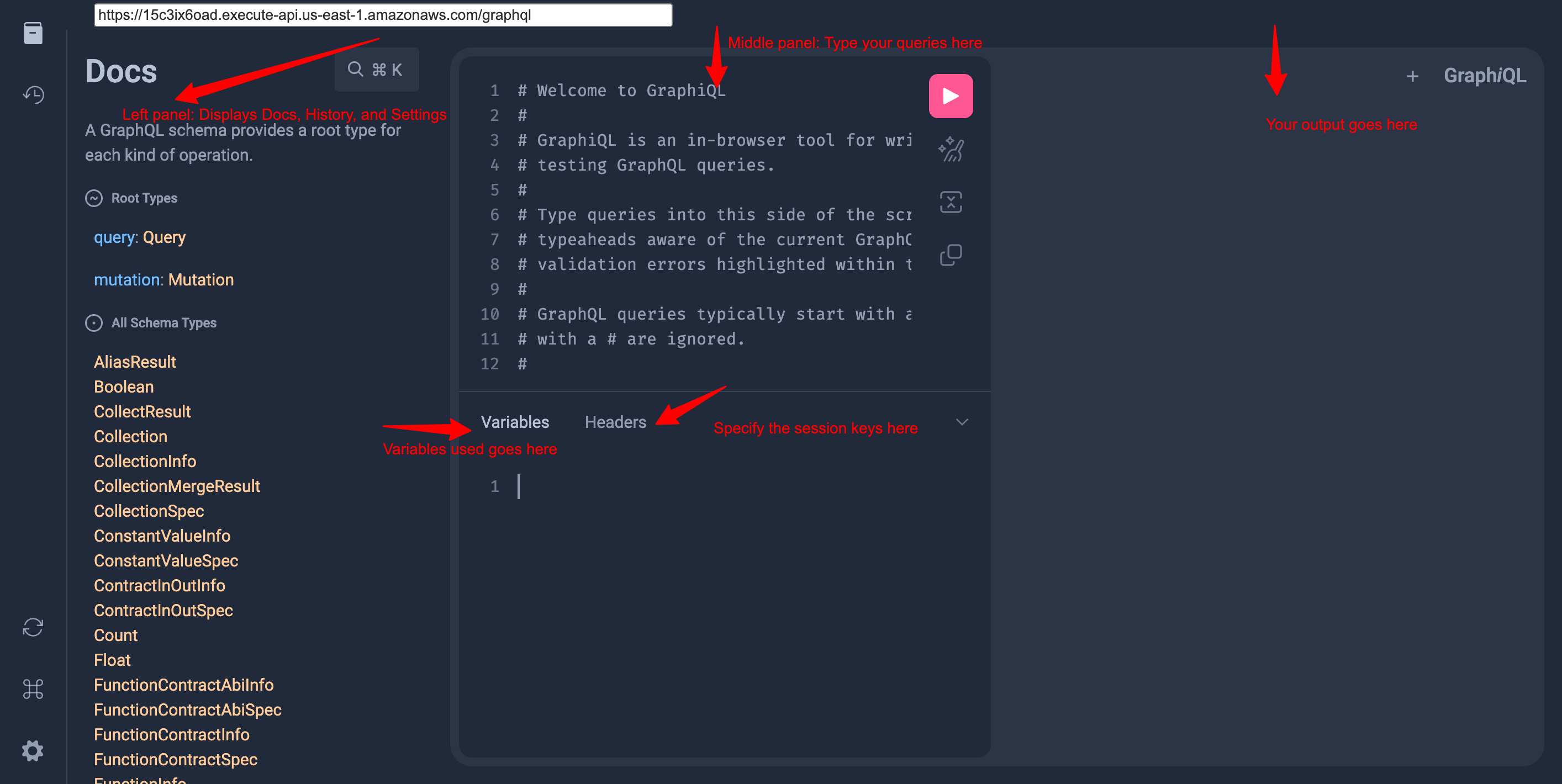
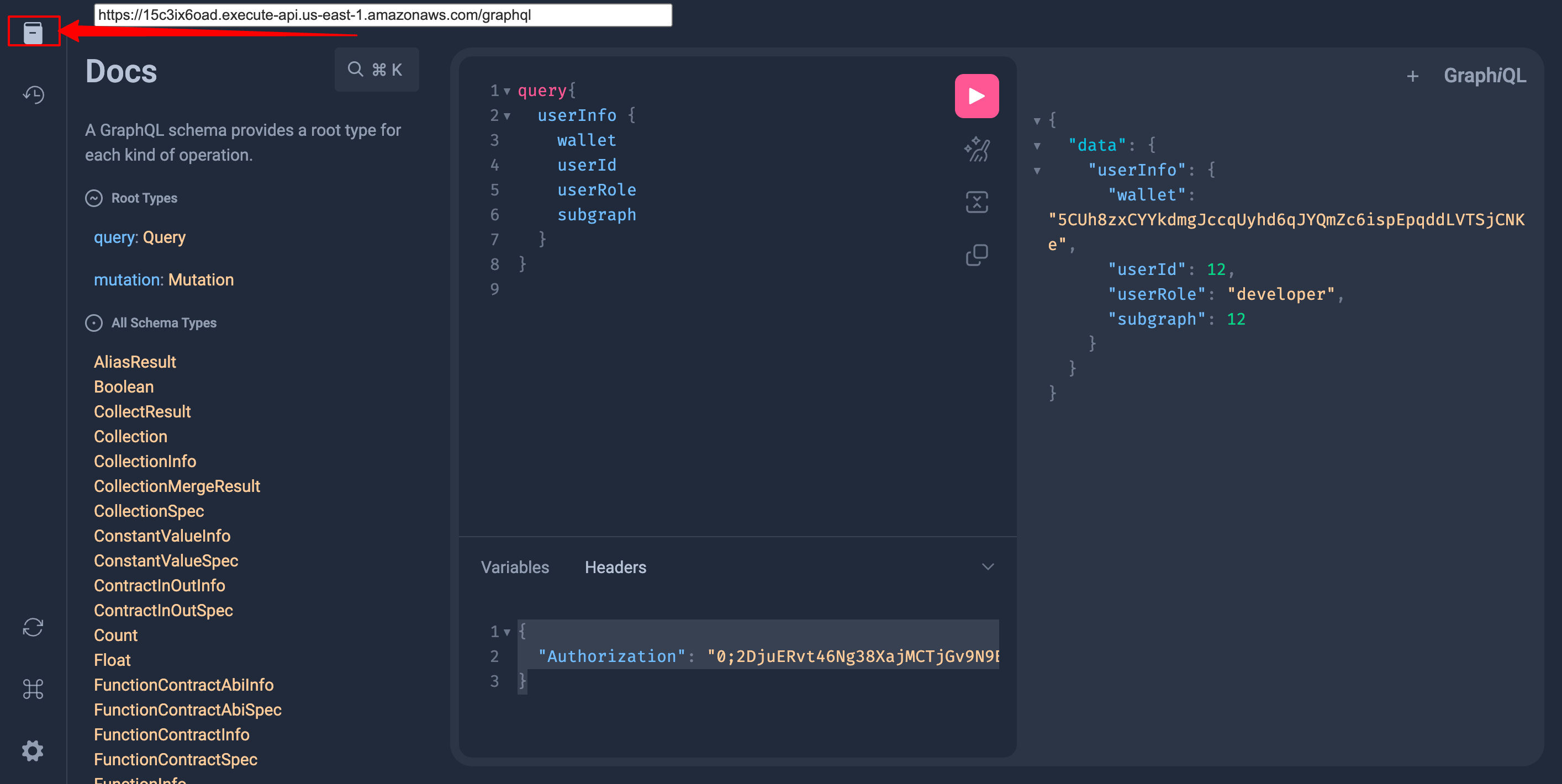
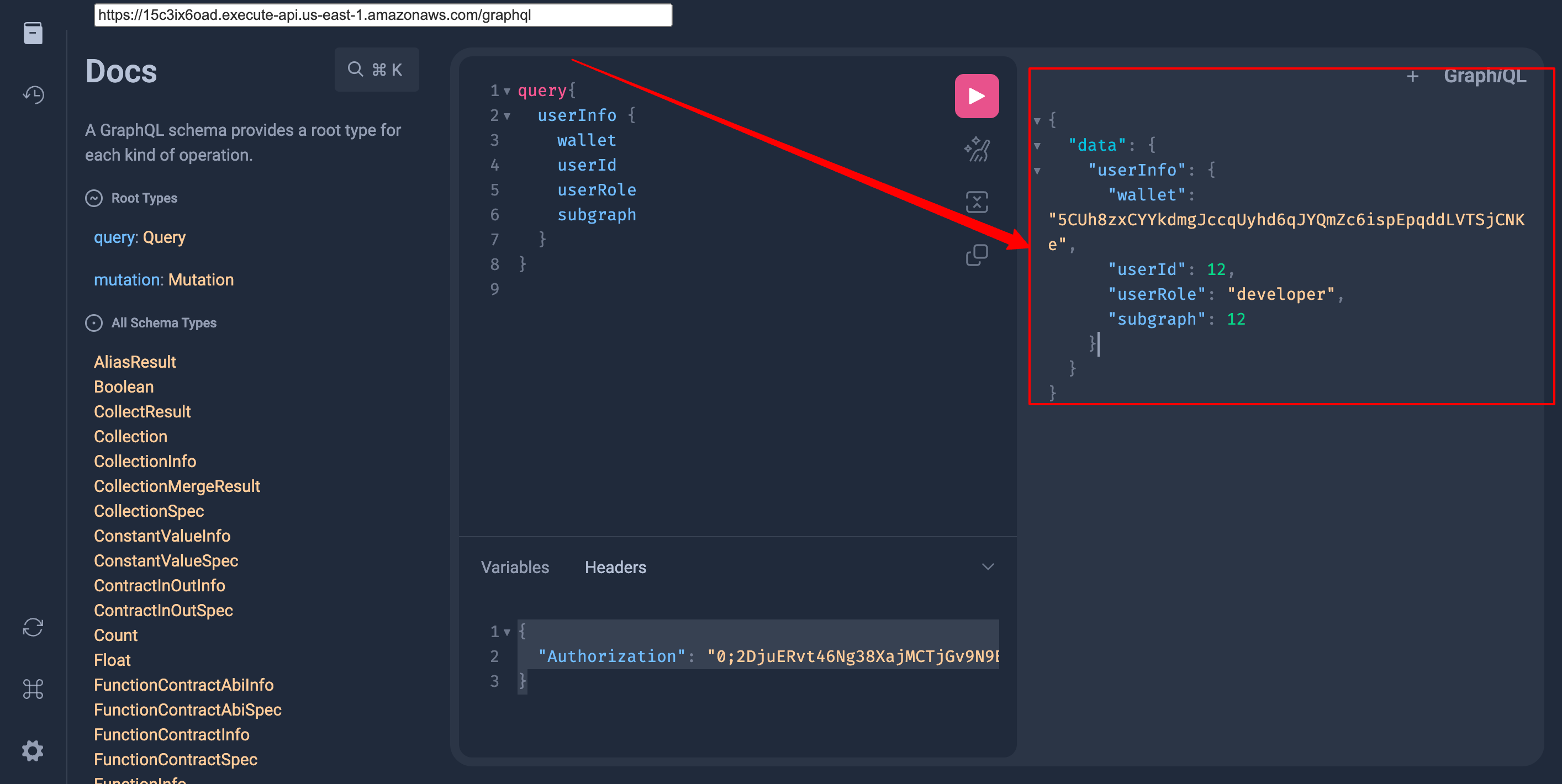
Learn how to quickly list/deploy new Smart Contracts with the Watch Portal, Watch SDK, and GraphQL IDE.
Exploring Listed Smart Contracts
The first step of querying or deploying a View on Analog Watch is exploring a list of Smart Contracts that have been published. You can check whether a Smart Contract is listed via these steps:
- Launch Analog Watch by visiting the appropriate environment URL and connecting your wallet. Once on the page, click the “Library” button. This should display a list of deployed smart contracts as seen in this screen:
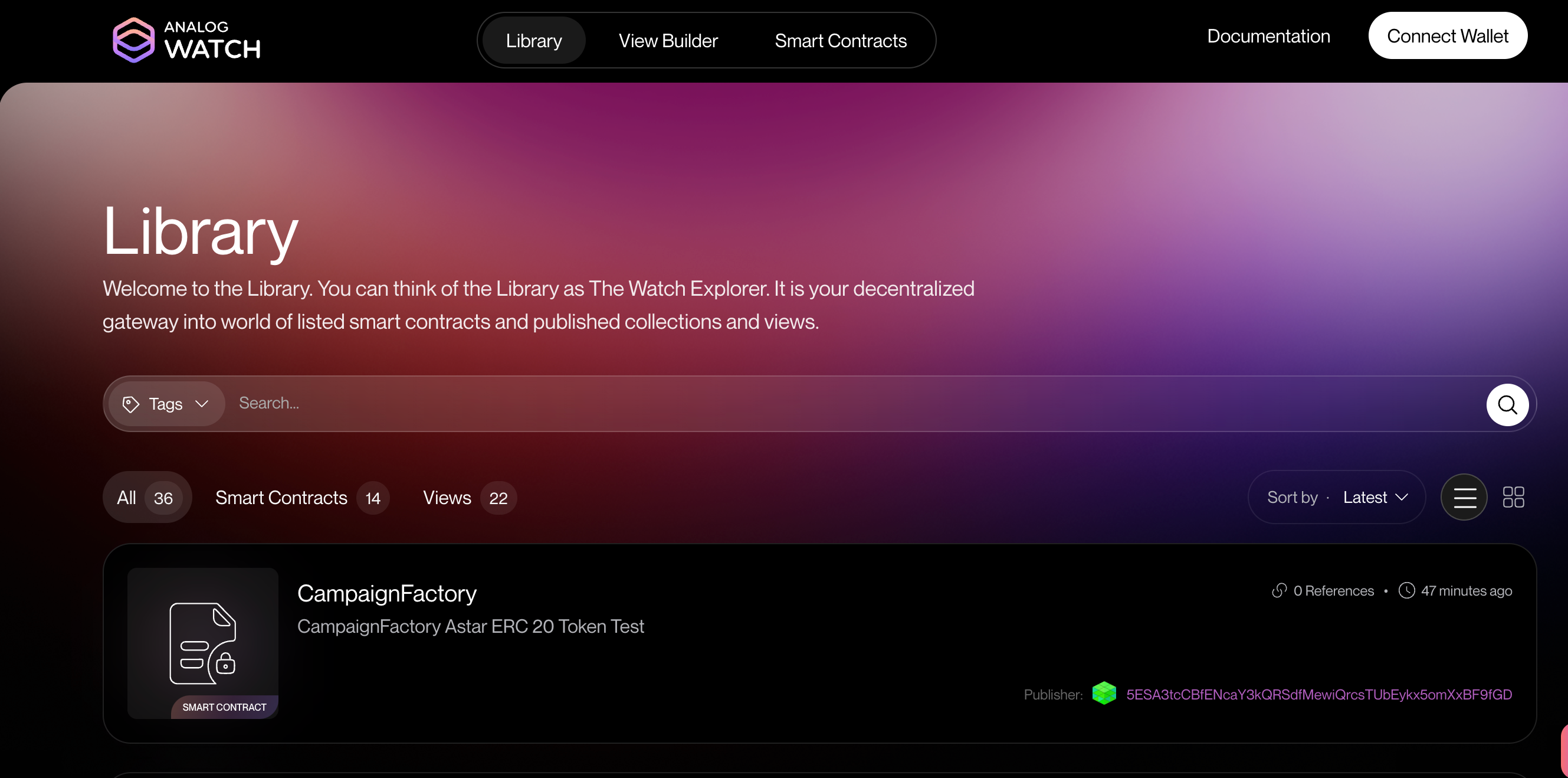
- Next, check whether your smart contract(s) and their relevant functions are published by clicking the “Smart Contract” link. This should display a list of all the published smart contracts. To see the details of a particular smart contract, select it by clicking on it. You can also filter a list of smart contracts displayed by specifying relevant tags or searching for a particular contract.
You should be able to see the published smart contract details, including the publisher's address, contract address, Views created from the smart contract, functions, and contract details (i.e., ABI) as shown here:
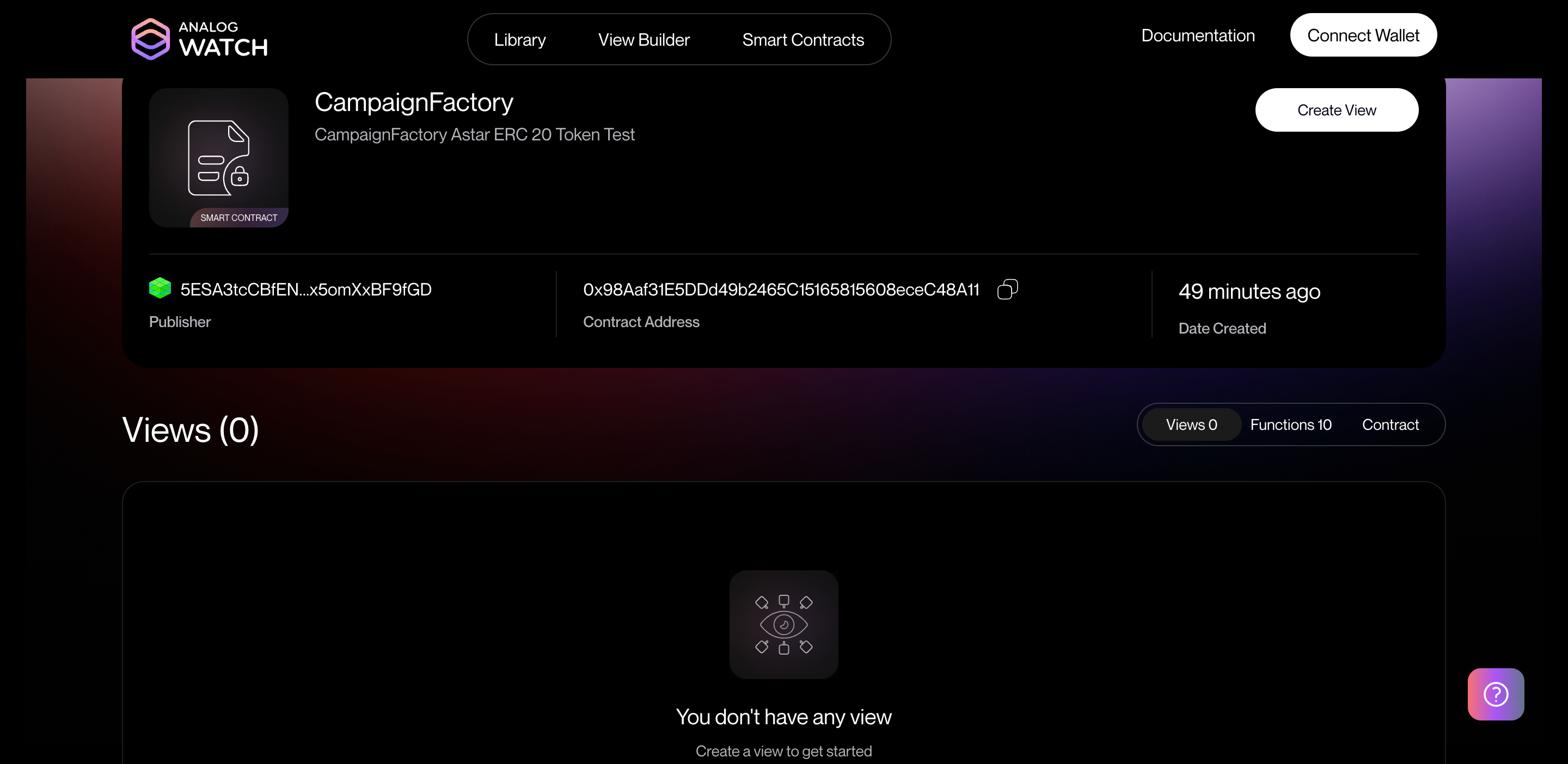
How to List a Smart Contract
If the smart contract is not listed, you'll need to list it. There are three methods for listing contracts on Analog Watch: Watch Portal, Watch SDK, and GraphQL IDE.
Depending on your choice, here’s how you’ll proceed:
Watch Portal
-
Click on the “Smart Contract” link at the top right of the screen. You’ll be presented with a screen similar to this:
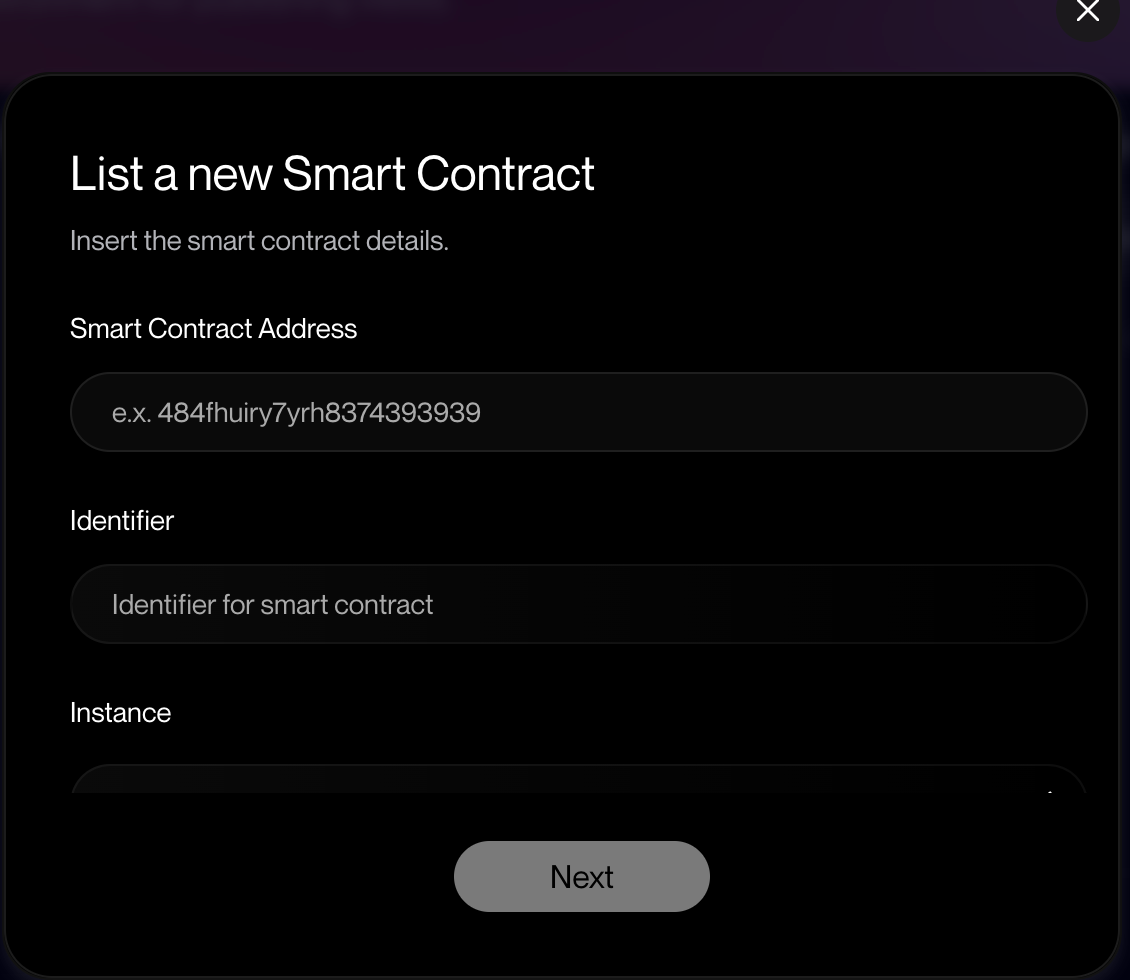
How to list a Smart Contract on the Watch Portal -
Enter the Smart Contract details, including the contract address, identifier (i.e., unique name for your contract), and instance (e.g., testnet or mainnet).
-
Next, select the chain where the Smart Contract is currently deployed and click “Add Functions.”
You should be able to see a list of available functions for the smart contract. Select the function(s) you want to publish and click the “List” button to list the contract. However, in case the protocol doesn’t recognize the contract address, you’ll be able to see a screen similar to this one:
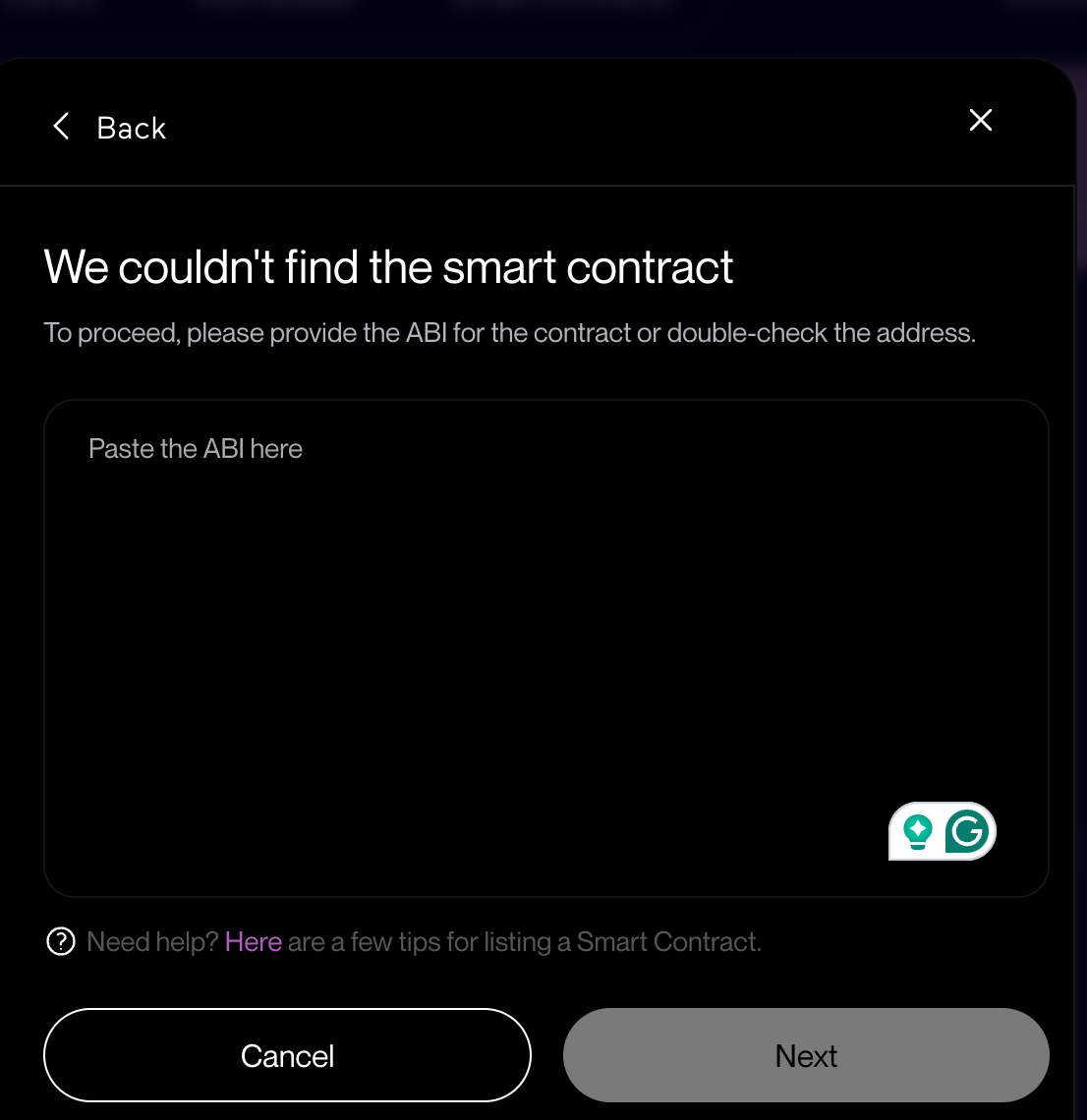
In this case, paste the ABI of your smart contract in the text area and click the “Next” button to list it. If the smart contract cannot be found despite providing the ABI, verify the address again, ensure you’ve provided the correct ABI on the next screen, and click the "Next" button.
If the contract has already been listed, you'll be presented with a screen similar to this:
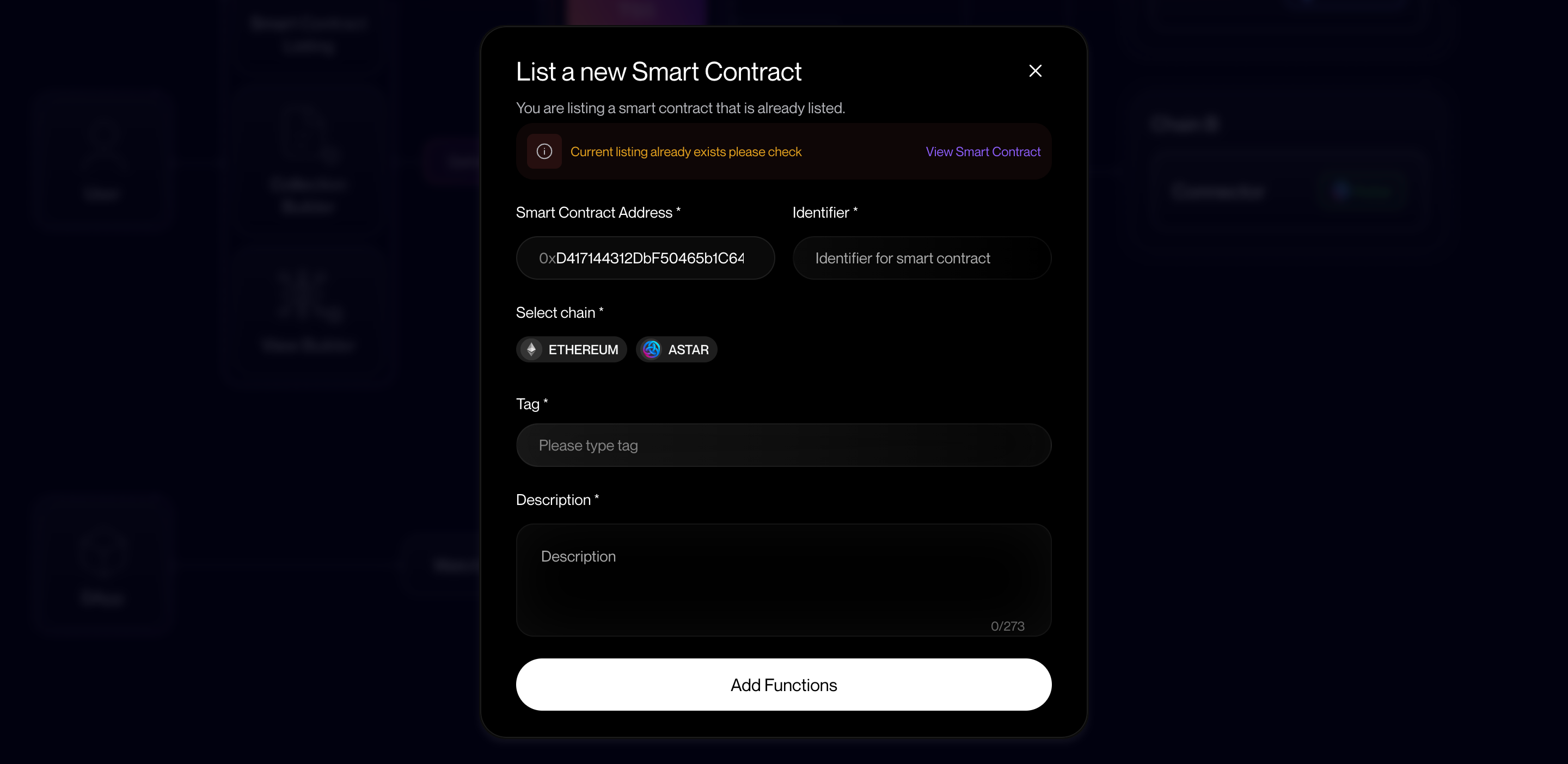
Click the "View Smart Contract" link to inspect the published functions. To add functions that are not yet published:
- Click on the "Add Functions" link.
- Select the function(s) you would like to add.
- Click on the "List" button.
Check out “Best Practices for Smart Contract Listing” to learn more.
- Wait for the Smart Contract to be listed on the Watch Portal.
Congratulations! You’ve successfully published your first smart contract using the Watch Portal!
To unlock the full potential of Analog Watch and discover its extensive features, head over to the following links: